Best Computer Monitors for the Productive Home Office (2026)

Introduction

Updated for 2026.

Setting up a high-performance home office in 2026 means more than just a good chair and fast internet — your monitor is the centerpiece of your workspace. Whether you’re managing cybersecurity alerts, editing high-res media, analyzing dashboards, or simply juggling multiple windows, the right display can make or break your workflow.

In this guide, we’ve rounded up the best home office monitors for different use cases — including 4K USB-C monitors, ultrawide displays for multitasking, and affordable options for secondary setups. Each monitor here has been selected for its balance of resolution, ergonomics, connectivity, and value, so you can focus on productivity without compromise.

Let’s dive into some of the top monitors that can transform your desk into a command center.

Dell P2725QE 27” 4K UHD Monitor – Our top pick

The Dell P2725QE offers crisp 4K resolution and a fully adjustable stand, making it perfect for home office professionals who value detail and ergonomics. With USB-C connectivity delivering 90W power, built-in USB ports, and a sleek design, it doubles as both a monitor and a docking station for your laptop.

  • 27″ 4K UHD (3840×2160) IPS Display
  • USB-C with 90W Power Delivery
  • 99% sRGB, HDR support
  • Ergonomic stand with height, tilt, swivel
  • Built-in USB-C Hub for peripherals

Check Price on Amazon

LG 34WN80C-B 34” UltraWide

Ideal for multitaskers and cybersecurity analysts, the LG 34WN80C-B provides a 3440×1440 ultra-wide canvas for dashboards, terminal windows, and browser tabs. The USB-C port delivers 60W of power, and its HDR10 and IPS panel make it a reliable, visually stunning productivity powerhouse.

  • 34″ UltraWide QHD (3440×1440)
  • 99% sRGB, HDR10, IPS
  • USB-C with 60W PD
  • Great for multitasking/dashboards

Check Price on Amazon

ASUS ProArt Display PA278CGV

Designed for creative pros and engineers alike, the ASUS ProArt PA278CGV features factory-calibrated color accuracy (100% sRGB, Rec.709) and smooth 75Hz refresh. It includes USB-C, DisplayPort daisy-chaining, and an ergonomic stand, making it ideal for designers, coders, and content creators who demand precision.

  • 27″ QHD IPS, 100% sRGB & Rec.709
  • USB-C with 65W Power Delivery
  • Calman Verified Color Accuracy
  • Ideal for creative professionals

Check Price on Amazon

Acer CB272 27” Budget Monitor

The Acer CB272 is a budget-friendly monitor that delivers solid performance for everyday tasks. With a 1080p IPS display, slim bezels, and a 75Hz refresh rate, it’s a great choice as a secondary screen or for users who need a clean, reliable setup without spending a fortune.

  • 27″ Full HD IPS (1920×1080)
  • up to 120Hz Refresh Rate, Slim Bezel
  • Adjustable Ergonomic Stand
  • Great value for secondary use

Check Price on Amazon

Final Thoughts: Choosing the Right Monitor for Your Home Office

Your monitor isn’t just a screen — it’s a daily tool that directly impacts your efficiency, comfort, and focus. Whether you’re handling sensitive cybersecurity operations, designing content, or managing meetings and multitasking, investing in the right display pays off in productivity.

For sharp visuals and future-ready connectivity, the Dell P2725QE offers a 4K experience with USB-C power and clarity and is also our top pick. If you need more screen real estate, the LG 34WN80C-B delivers ultrawide versatility perfect for analysts and multitaskers. Creative professionals will love the color precision of the ASUS ProArt PA278CGV, while the Acer CB272 remains a reliable choice for budget-conscious setups.

No matter your role or workspace size, there’s a monitor here to level up your home office. Pick the one that fits your workflow — and start working smarter, not harder.

[disclosure]

Best Home Wifi Routers for 2026 – Security Focused Review

futuristic router with two antennas

Introduction

Is your home router leaving your network wide open to attack? Many popular SOHO (Small Office/Home Office) routers come with outdated firmware, weak security settings, and are long abandoned by manufacturers. This article shows you which routers to avoid, what security features modern routers must have, and how to harden your network for peace of mind in 2026. We aim to help you find the best home router 2026.

Why Router Security Matters for Home and Remote Work in 2026

Whether you’re attending Zoom meetings, accessing company data, or just streaming media, your SOHO wifi router is a critical line of defense. Unfortunately, attackers often target these devices due to poor configurations and long-unpatched vulnerabilities. If your router hasn’t received a firmware update in over a year—or if it still uses “admin/admin” as the login—it could already be compromised.

4 Major Security Weaknesses Found in Insecure SOHO Routers

1. Outdated Firmware

Firmware updates fix critical vulnerabilities. Without updates, routers are exposed to remote code execution, buffer overflow attacks, and credential theft. Many models are no longer supported after just 3–5 years.

2. Default Credentials

Default admin usernames and passwords are easy to guess. Attackers use automated tools to brute-force these logins and take full control of your router settings.

3. Weak Wi-Fi Encryption

Using WEP or outdated WPA1 protocols puts your wireless network at risk. Hackers can crack these in minutes. Always use WPA2-AES or WPA3 for maximum wireless security.

4. Missing Security Features

Insecure routers often lack features like firewalls, VPN support, 2FA, or guest network isolation. These are essential for protecting sensitive data in any modern home office setup.

Routers with the Worst Security Track Record

Here are several routers known for their poor security history and lack of vendor support:

Router ModelSecurity IssuesKnown Vulnerabilities
Netgear R7000 NighthawkUnpatched firmware, RCECVE-2020-27866, CVE-2016-6277
TP-Link Archer C20/C7Hardcoded credentials, outdated firmwareCVE-2019-7405
D-Link DIR-615/825Auth bypass, command injectionCVE-2019-16920
Linksys WRT54GVery outdated, no WPA2End of life, no current support
Ubiquiti EdgeRouter X (when misconfigured)Open SSH, poor default firewall settingsConfiguration-based risk

Secure SOHO Router Features to Look For

When buying a new SOHO router, ensure it has these modern security features:

  • WPA3 Wi-Fi encryption (or WPA2-AES at minimum)
  • Automatic and signed firmware updates
  • Stateful Packet Inspection (SPI) firewall
  • Built-in VPN support (client/server)
  • Guest network isolation
  • Two-Factor Authentication (2FA) for admin access
  • Device logging and traffic alerting

Best Secure SOHO Routers to Buy in 2026

Here’s a curated list of five of the most secure and up-to-date SOHO routers for 2025, each offering robust protection, modern standards, and future-proof features:


Top 5 Most Secure SOHO Routers (2026)

RouterWi-Fi StandardKey Security FeaturesIdeal ForPrice
ASUS ROG Rapture GT-BE98 PROWi-Fi 7WPA3, VPN, AiMesh, subscription-free securityPower users, gaming, multi-device homes~$699
Netgear Nighthawk RS700SWi-Fi 7WPA3, firewall, auto firmware updates, VPNHigh-performance SOHO setups~$599
Amazon Eero Pro 7Wi-Fi 7WPA3, secure mesh networking, automatic updatesMesh coverage, smart homes~$579
GL.iNet Slate AX (GL-AXT1800)Wi-Fi 6Built-in VPN, firewall, DNS encryptionTravel, remote work, privacy-focused users~$119
TP-Link Archer AXE75Wi-Fi 6WPA3, HomeShield security, VPN supportBudget-conscious SOHO users~$99

🧠 What Makes These Routers Secure?

WPA3 Encryption: Stronger protection against brute-force attacks.

Built-in VPN Support: Encrypts traffic for remote workers and privacy.

Automatic Firmware Updates: Keeps vulnerabilities patched.

Firewall & Threat Detection: Blocks malicious traffic and scans for intrusions.

Device Isolation & VLAN Support: Segments networks for added protection.


Top 5 Router Hardening Tips

  1. Change the default admin password to a strong, unique passphrase.
  2. Disable remote administration unless you’re using a VPN.
  3. Turn off WPS (Wi-Fi Protected Setup), which is vulnerable to brute-force attacks.
  4. Use guest networks to isolate smart devices or visitors from sensitive systems.
  5. Enable automatic updates and review system logs regularly for suspicious activity.

How to Upgrade Your Router Without Downtime

  • Back up your current configuration (if your router supports it).
  • Set up and secure the new router offline before connecting to the internet.
  • Immediately install any firmware updates from the vendor.
  • Enable security features: WPA3, firewalls, and 2FA.
  • Reconnect devices, segment your network, and verify connectivity.

Conclusion: Don’t Let Your Router Be the Weakest Link

Your SOHO router may be small, but it plays a huge role in protecting your digital life. Legacy routers with outdated firmware, default settings, or weak encryption put your work, finances, and identity at risk. Upgrading to a secure, modern router is one of the best cybersecurity investments you can make in 2026.

Check your current router model and security features today. If it’s over 5 years old or hasn’t received updates recently, replace it with a device that puts security first.

[disclosure]

Review: Anker 565 USB-C Hub (11-in-1) – The Ultimate Docking Station for Power Users in 2026

If you’re running a multi-monitor setup in 2026, managing cloud infrastructure, or just need serious I/O flexibility, the Anker 565 USB-C Hub is a powerhouse that transforms a single USB-C port into a full-fledged workstation.

Key Features

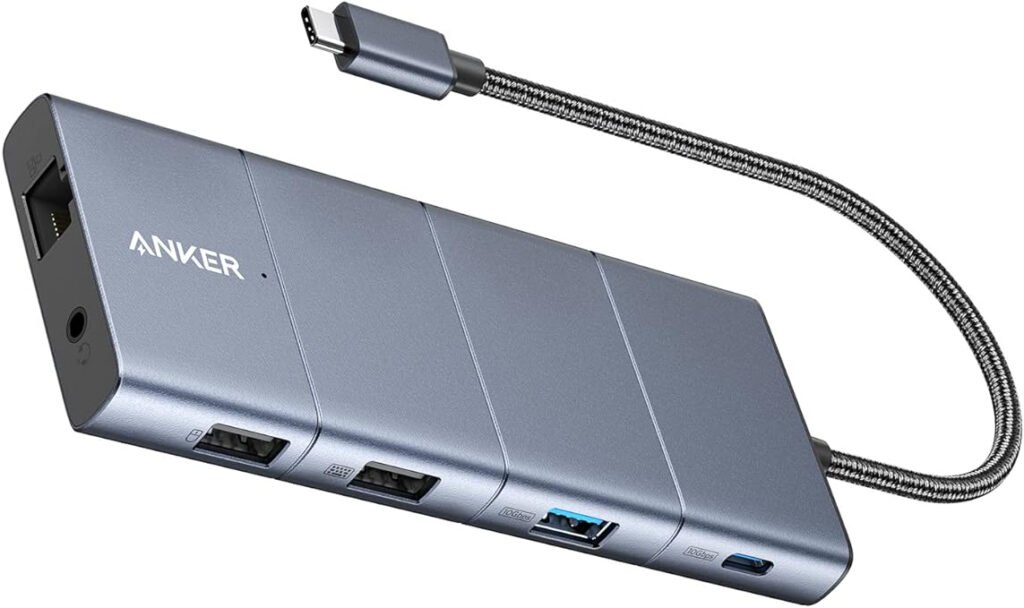
  • 11 Ports of Expansion: Includes 10 Gbps USB-C and USB-A data ports, 4K HDMI, 4K DisplayPort, Ethernet, AUX, SD/microSD slots, and two additional USB-A ports
  • Dual Monitor Support: Connect HDMI and DisplayPort simultaneously for crisp 2K@60Hz or 1080p@60Hz output (Windows only; macOS mirrors displays)
  • 85W Pass-Through Charging: Keeps your laptop powered while running peripherals—ideal for Dell XPS and other USB-C PD laptops
  • High-Speed Data Transfer: Move files fast with 10 Gbps ports and 104 MB/s SD card slots
  • Compact & Travel-Ready: Lightweight and sleek, perfect for remote work setups or mobile creators

Real-World Use Case

For someone like me—who’s juggling virtualization, content creation, and cloud security workflows—this hub is a game-changer. It handles simultaneous display output, fast file transfers, and stable Ethernet without throttling or overheating. The layout is intuitive, with enough spacing to avoid cable clutter or blocked ports.

Whether you’re connecting a Dell XPS, MacBook, or Chromebook, this hub adapts with USB4 and Thunderbolt compatibility. Just note: display output is limited to HDMI and DisplayPort—USB-C video isn’t supported.

Final Verdict

The Anker 565 USB-C Hub is a top-tier choice for professionals who need reliable connectivity without the bulk of a full docking station. It’s ideal for cloud engineers, remote workers, and creators who demand performance and portability.

What do you think? Is the Anker a good choice?

[disclosure]